Collie
  • Solutions
    • Access & Manpower
      • Access Control Management
      • Attendance & On-Site
      • Worker, Staff & Visitor Management
      • Print Card
      • ePSS & BAS Compliance
    • IoT Sensors
      • Asset & Personnel Tracking
      • Equipment Monitoring
      • Health Monitoring
      • Name Reader & Display
    • AI Solutions
      • Passport Reader
      • Video Analytics
      • Face Detection
      • Stranger Detection
      • Human Intrusion
      • Crowd Detection
      • Loitering Detection
      • Smoke Detection
      • No Helmet Detection
      • Speeding Detection
      • People Counting
      • ANPR & Vehicle Recognition
      • Vehicle Transaction
    • Robots
      • Humanoid
      • Forklift
      • Arms Bot
      • Robot Hands
  • Use Cases
    • Education
    • Industrial Sites
    • Hospital
    • Offices
    • Construction
    • Pharmaceutical
    • Smart City
    • Smart Home
    • Collie Campus
  • Resources
    • Knowledge Base / Docs
    • News
    • Robot Video Gallery
    • Company Profile
  • Store
    • Attendance Machines
    • Thermal Printers
  • About Us
Contact Us
Contact Us

Collie

26
  • Collie Release Notes v1.5.5
  • Collie Release Notes v1.5.4
  • Collie Release Notes v1.5.3
  • Updating Personnel Photo
  • Collie Attendance – IN/OUT & On-Site Behaviour
  • Collie Release Notes v1.5.2
  • Collie Release Notes v1.5.1
  • Collie Release Notes v1.4.9
  • Transaction Report
  • How to Register Visitor by Collie Admin
  • How to Register Worker by Collie Admin
  • How to Register Staff by Collie Admin
  • How to Setup Floor Plan on Collie
  • How to Verify Self Registration Visitor
  • How to Activate 2FA
  • How to Link Beacon to Personnel
  • How to Self Register Visitor
  • How to Link Beacon to Asset
  • How to Register New Asset
  • How to Register Beacon Getway on Collie
  • How to Setup Beacon Getway
  • Solar Panel Overview
  • How to Register Beacon Tag on Collie
  • Collie Release Notes v1.3.11
  • Upgrade firmware Ingics Beacon Gateway iGS03W, iGS03M
  • Setup Gateway iGS03 Series Collie

VMS

12
  • Uface 1FA & 2FA Manual
  • Access VMS Page using VPN
  • Assign and Unassign Personnel
  • Bulk Upload Staff with Assignment – VMS
  • Bulk Upload Worker with Assignment – VMS
  • How to Activate 2FA – VMS
  • How to Print Worker Card
  • License Plate Registration
  • Assign user to project – VMS
  • Visitor registration
  • Print Visitor Card
  • Preassign Temporary/Visitor Cards

Release Notes

7
  • Collie Release Notes v1.5.5
  • Collie Release Notes v1.5.4
  • Collie Release Notes v1.3.11
  • Collie Release Notes v1.4.9
  • Collie Release Notes v1.5.1
  • Collie Release Notes v1.5.2
  • Collie Release Notes v1.5.3
View Categories
  • Home
  • Knowledge Base
  • VMS
  • Bulk Upload Staff with Assignment – VMS

Bulk Upload Staff with Assignment – VMS

0:00 / 1:35
  • View as Markdown Open this page as plain Markdown (opens in a new tab)
  • Open in ChatGPT Ask questions about this page (opens in a new tab)
  • Open in Claude Ask questions about this page (opens in a new tab)
  • Open in Google AI Studio Ask questions about this page (Google account required) (opens in a new tab)

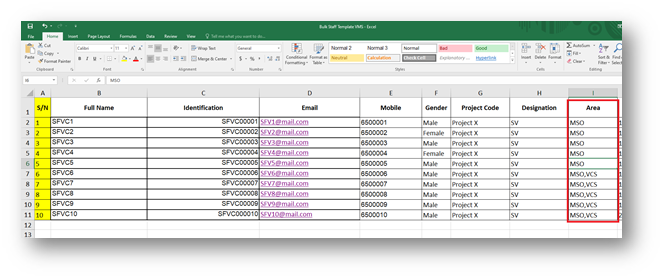
 In Cullie VMS, you can upload all Staff data at once (bulk upload) and immediately assign these Staffs to Projects and Areas. 


Please Note

  • Full Name, Identification(NRIC/FIN), Email, Mobile, Project Code, Designation, and Area are mandatory.  
  • Make sure all tables have a border, otherwise the data will not be read and will fail to be saved by the system.  
  • Do not change the header name in the table, otherwise the data will not be read and will fail to be saved by the system.  
  • Do not change the name on the staff registration Sheet, otherwise, the data will not be read and will fail to be saved by the system.  
  • For the date format, use the DD-MMM-YYYY format 
  • Please fill in the Project name exactly as in the system 
  • Make sure the Designation matches what is in the system, otherwise the bulk data upload will be an error 
  • Make sure the area name matches the one in the system, otherwise, the bulk upload will be an error 
  • You can update Staff’s data by re-uploading the Staff list, but make sure the NRIC remains unchanged.  

Download the template file for uploading Staffs to Cullie VMS, fill in the data, and upload it to Cullie VMS in the fullowing way.   

  • Login to VMC Cullie as Administrator.   
  • Click on Staff Menu, and then click the Orange button.   


  • Click Bulk Upload Button.


  • Click the BROWSE FILES button, then a dialog window will appear, find and click on the file you want to upload, then click the Open button.  


  • Click UPLOAD.


  • If the bulk upload worker is successful, you will see a message like this  

  • The number of Staff in the area will also increase.  


Updated on September 30, 2024

What are your Feelings

  • Happy
  • Normal
  • Sad

Share This Article :

  • Facebook
  • X
  • LinkedIn
  • Pinterest
Assign and Unassign PersonnelBulk Upload Worker with Assignment – VMS

Powered by BetterDocs

Leave Comment Cancel reply

Collie

One intelligence platform for access, sensing, vision and mobility, now deployable on wheels, legs, and arms.

2 Venture Dr, #24-01 Vision Exchange, Singapore 608526

Access & Manpower

  • Access Control Management
  • Attendance & On-Site
  • Worker, Staff & Visitor Mgmt
  • Print Card

IoT Sensors

  • Air Quality Monitoring
  • Solar Panel Monitoring
  • Asset & Personnel Tracking
  • Health Monitoring
  • Equipment Monitoring
  • Name Reader & Display
  • Passport Reader

AI Solutions

  • Video Analytics
  • Human Intrusion
  • Crowd Detection
  • Loitering Detection
  • Smoke Detection
  • No Helmet Detection
  • Speeding Detection

Visitor Mgmt (VMS)

  • Face Detection
  • Stranger Detection
  • People Counting
  • ANPR / Vehicle Recognition
  • Vehicle Transaction

© 2026 Collie by Magicsoft Asia Systems. All rights reserved.

  • Privacy Policy
  • Terms & Conditions
  • Send us email